
Power Apps
Microsoft CorporationBusiness
4.4620.00 Reviews
- Version
- 3.26083.4
- Installs
- 10.00M
- Age Rating
- Everyone
Screenshots
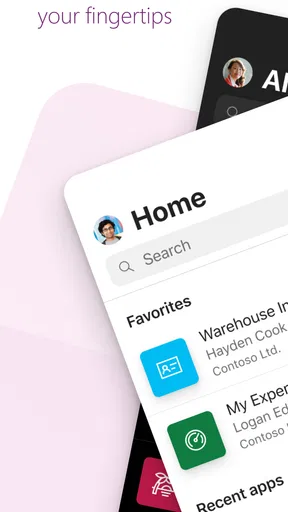
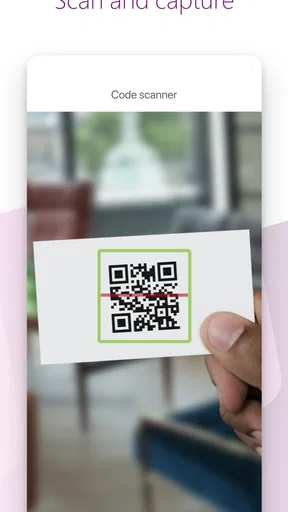
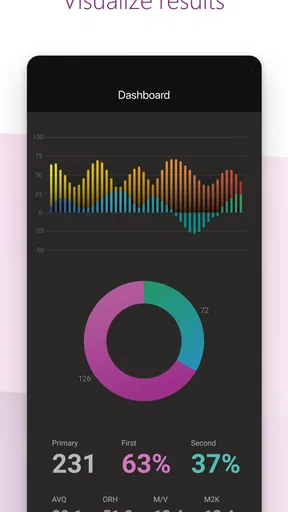

Our Review of Power Apps
 Analysis by Appyee
I first approached Power Apps as a practical business tool rather than another general productivity app. That distinction matters. It is built by Microsoft Corporation for creating and using business applications, so its value depends less on entertainment or polished personal planning and more on whether your workplace has useful apps ready for you. In my experience, it makes the most sense when a company wants staff to handle a specific process from a phone without forcing everyone to sit at a desk.
The app is free, rated for Everyone, and available for devices running Android 7.0 or later. Its current version is 3.26083.4, while the product itself has been available since April 28, 2016. Those details show a mature Microsoft product rather than a brand-new experiment. It has reached over ten million installs, with an average rating of 4.4 from around forty-four thousand ratings and hundreds of written reviews. I would not treat those figures as a guarantee that it will suit every organization, but they do suggest that Power Apps has become a familiar mobile entry point for business workflows.
How Power Apps feels in everyday business use
The central idea is straightforward: your organization can provide custom business apps that you open and use on a mobile device. Instead of switching between paper forms, email threads, spreadsheets and separate internal websites, you may be able to complete a focused task in one interface. The important word is “may,” because the quality of the experience depends heavily on how the app was designed and what services it connects to.
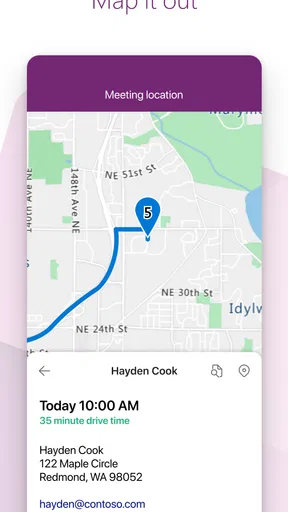
For example, imagine a field employee arriving at a customer site. A Power Apps application could give that person a company-specific way to review a job, record notes, update a status or submit information while away from a computer. In another workplace, the same platform might be used for stock checks, internal requests, equipment inspections or approval steps. The app on your phone is therefore not one fixed tool with one identical purpose for everyone. It is a doorway into business applications created for particular teams.
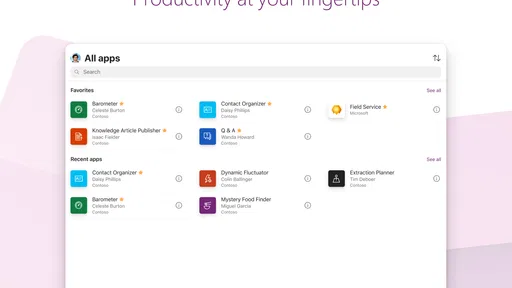
That flexibility is its biggest strength and also the first thing a new user needs to understand. Installing Power Apps does not automatically give you a complete personal planner, accounting package or project-management system. You need access to applications made available by your organization. If your employer has not prepared anything useful for your account, the app can feel surprisingly empty or irrelevant.
I like the way this model can reduce unnecessary complexity for employees. A well-made internal app can show only the fields and actions needed for a particular job. Someone completing a delivery check should not have to understand the whole company database. Someone requesting equipment should not need to navigate a large enterprise portal. When the underlying setup is thoughtful, Power Apps turns a broad business process into a shorter mobile task.
Where the mobile approach is genuinely useful
The clearest benefit appears when work happens away from a desk. A phone is already available during a site visit, a store walk-through or a routine inspection, so entering information immediately can be more practical than writing notes and retyping them later. That can reduce the awkward gap between what happened in the real world and what eventually appears in the company system.
There is also a useful middle ground between a full native app and a basic web form. A custom business app can present a more guided experience than an ordinary browser page, while the organization can adapt it to its own process instead of waiting for a commercial software vendor to support every unusual requirement. For teams with a narrow but important workflow, that can be a sensible compromise.
Still, I would not choose it simply because a process exists on paper. A badly designed internal application can make a simple task slower than a spreadsheet. The platform gives organizations room to build, but it does not remove the need for sensible screen layouts, clear labels, careful validation and regular maintenance.
What it is like for employees rather than app builders
From an employee’s point of view, the first question is usually not what Power Apps can build. It is whether the right application appears, whether sign-in works, and whether the buttons match the language used by the team. Those details are controlled largely by the organization’s setup. I found that this makes the experience less predictable than using a conventional consumer app.
If your company has created a focused application with familiar terminology, the learning curve can be modest. You may only need to select a record, enter a few details and submit the result. If the application exposes a broad collection of internal tools, however, finding the correct one can take more effort. New users should ask their manager or IT team which app they are expected to use instead of assuming that every item in the Power Apps environment is relevant to them.
A useful habit is to test the complete workflow before relying on it during a busy shift. Open the assigned app, sign in, locate the main task and check what happens after submission. This catches account or access problems early. It also reveals whether the design expects a stable connection, whether a form is too long for mobile use, and whether you need information from another system before starting.
Why the platform’s history matters
Because Power Apps has been available since 2016, I see it as part of Microsoft’s longer move toward making business processes more accessible through configurable software. The current version, 3.26083.4, is a useful marker of the product’s present state, but it should not be confused with a promise that every organization’s custom application has recently changed. The mobile shell and the business app inside it are related, yet the visible experience can still vary between workplaces.
That distinction is important for existing users. An update to the Power Apps mobile client may improve compatibility or refresh the way the platform behaves, while the forms, fields and workflows your company created may remain exactly as they were. Conversely, your organization can change an app without the mobile client itself being the reason. When something looks different, I would first check whether the change affects the general Power Apps interface or only one internal application.
The product’s evolution is therefore best judged in two layers. Microsoft maintains the mobile platform, while each organization decides how much of that platform employees actually see. This is one reason reviews based only on screenshots can be misleading: two users can install the same app and have very different experiences.
Practical advice for a smoother first week
My first recommendation is to identify the source of each problem before blaming the app. If you cannot sign in, the issue may be your work account or company access. If a particular field is confusing, the app’s design may need attention from its owner. If the entire application is missing, your account may not have been assigned the required permissions. Knowing this saves time because reinstalling the mobile client will not fix every organizational configuration issue.
My second recommendation is to use the phone for the parts of the process that benefit from being mobile. Reviewing a short record, capturing an update or completing a quick inspection can work well. Designing a complex report or entering a large amount of structured information is usually more comfortable on a larger screen, assuming your organization offers another way to do it. Power Apps works best when the workflow is redesigned for mobile, not merely squeezed onto a small display.
A third useful practice is to keep a simple fallback for critical work. If a form fails at a customer location or a connection becomes unreliable, your team should know how to record the essential details temporarily and enter them later. That is not a criticism unique to this product; it is a sensible safeguard for any mobile business system. The important point is to agree on the fallback before an urgent task exposes the gap.
How it compares with ordinary alternatives
Compared with a spreadsheet, Power Apps can provide a more controlled front end. Employees do not necessarily need to see every column, edit the underlying structure or remember the correct formatting. That can reduce accidental changes and make a repeated process easier to follow. The trade-off is that a spreadsheet is often quicker for an individual to create and modify, while a Power Apps solution usually depends on organizational setup.
Compared with a normal website, the mobile app can feel more direct for recurring internal tasks. A dedicated app entry point is convenient when staff repeatedly perform the same action. On the other hand, a browser-based tool may be easier for occasional users, especially if they do not want another mobile application or if the workflow is mainly designed for desktop screens.
Compared with a specialized commercial business app, Power Apps offers more room for an organization to shape a process around its own needs. That is attractive when the workflow is unusual or changes often. A specialized product may still be better when a company needs a polished, ready-made system with deep features, predictable behavior and a complete support model. Power Apps is not automatically the cheaper or simpler choice once design, administration and ongoing maintenance are considered.
It also differs from general note-taking and task apps. Those tools are usually designed around the individual. Power Apps is more useful when information needs to follow a company process and be handled by multiple people or teams. If all you need is a private checklist, shared notes or a personal reminder, this platform may be more machinery than you need.
Limitations I would consider before depending on it
The largest limitation is dependency on your organization. You cannot judge the platform only by installing it because the quality of the actual business application depends on whoever built and maintains it. A thoughtful implementation can be quick and clear; an unfinished one can contain confusing navigation, unnecessary fields or workflows that do not match real working conditions.
Another limitation is consistency. A company may create several apps with different layouts and naming conventions. Moving between them can feel less coherent than using a single commercial product. This is not necessarily a flaw in the mobile client, but it affects the overall experience. Organizations should establish design standards if they expect employees to use several internal apps.
Mobile convenience also has boundaries. Long forms, dense tables and complicated approvals can become tiring on a phone. If your job involves reviewing a large amount of information, a desktop interface may remain the better option. I would be cautious about treating mobile access as a replacement for every business screen.
There is a human limitation as well: users may not know where to report a problem. With a consumer app, the developer is usually the obvious contact. With Power Apps, the right person may be an internal app owner, an IT administrator or a department manager. Before rollout, a company should make that support path clear. Without it, small usability problems can linger because everyone assumes someone else is responsible.
Who should use it, and who should skip it
I would recommend Power Apps to employees whose organizations already use Microsoft’s platform for custom internal workflows and need convenient access from Android devices. It is especially promising for teams that work in the field, repeat structured tasks or need to submit updates while moving between locations. It can also suit companies that want to adapt a process without commissioning a completely separate mobile product.
I would be more cautious if you are an individual looking for a standalone business organizer. The app is not the obvious choice for personal invoicing, private project planning or a simple to-do list. You may install it and find that its usefulness depends on an invitation, an assigned app or an account managed by your workplace. For those personal needs, a dedicated productivity tool is likely to be faster to understand.
Small organizations should also think about ownership before adopting it. Building the first version of a workflow is only part of the job. Someone must review the process, respond when requirements change and help employees when a form stops matching reality. If nobody has that responsibility, a conventional shared document may be easier to keep alive, even if it is less elegant.
What existing users and new adopters should watch
For current users, I would watch the practical effect of each mobile update rather than assuming that a new version changes your company’s workflow. Check whether your usual app still opens correctly, whether the sign-in experience remains smooth and whether your most important submission reaches the expected destination. A quick real-world test is more useful than relying on the version number alone.
For organizations considering a rollout, the key question is not simply whether the platform can support a process. It is whether the process has been simplified enough for the people who will use it. Ask a few employees to complete the task on a phone without coaching, then observe where they hesitate. That exercise often reveals more than a technical demonstration.
I would also watch for the boundary between configuration and customization. The ability to tailor a workflow is valuable, but every extra variation can make training and support harder. A company may gain speed by giving each department its own form, then lose that advantage when employees move between teams. A shared structure with a small number of clear differences can sometimes serve people better than many highly customized versions.
Finally, pay attention to whether the mobile experience remains aligned with the real process. Business procedures change, staff roles change and the information needed at a site can change. An app that was excellent when launched can become frustrating if its fields no longer reflect the work. Power Apps gives organizations a way to adjust, but that benefit only appears when someone regularly reviews the result.
My overall view is positive but conditional. Power Apps is a capable business access point for organizations that have invested in focused, mobile-friendly workflows. I appreciate that it can bring a company-specific task onto a phone without asking every employee to learn a full enterprise system. At the same time, it is not a magic collection of ready-made tools, and the app’s success is inseparable from the quality of the internal applications behind it.
For the right workplace, the free download and broad device compatibility make it easy to try, and Microsoft’s long-running development gives it a solid foundation. For a person seeking a standalone productivity app, the same qualities may not matter much. I would install it when my employer directs me to a specific business app, test the complete workflow before relying on it, and judge it by whether it removes steps from my actual day. That is where Power Apps earns its place: not as a universal replacement for every business tool, but as a practical mobile layer for well-designed company processes.
Verdict
Strengths of Power Apps
- Build custom business apps without advanced coding skills.
- Connects easily with Microsoft 365, Dataverse, and many data sources.
- Works across web and mobile devices with responsive app options.
- Automates workflows through integration with Power Automate.
- Enterprise security, governance, and administration tools are available.
Limitations of Power Apps
- Advanced features can require familiarity with Microsoft’s ecosystem.
- Licensing costs may increase as users and premium connectors are added.
- Performance can suffer with large datasets or complex formulas.
- Offline functionality is limited and may need careful configuration.
- Some features depend on administrator permissions and tenant settings.
Other Releases by Microsoft Corporation
View All
Microsoft OneDrive
Productivity4.6

Microsoft OneNote: Save Notes
Productivity4.6

Link to Windows
Productivity4.0

Microsoft PowerPoint
Productivity4.8
Similar Picks in This Category
View All
LinkedIn: Community & Network
LinkedIn3.8

Zoom Workplace
zoom.com4.1

Microsoft Teams
Microsoft Corporation4.6

Meta Business Suite
Meta Platforms, Inc.4.6

Webex Meetings
Cisco Systems, Inc.4.5

TeamViewer Remote Control
TeamViewer4.4
Frequently Asked Questions
What is Microsoft Power Apps used for?
Microsoft Power Apps is a low-code platform for creating custom business applications without needing extensive programming experience. It can be used to manage forms, approvals, customer information, inventory, field operations, and internal workflows. The mobile app lets users access applications created by their organization, review records, complete tasks, upload information, and work with connected Microsoft services while away from a computer.
Can I use Power Apps for free on Android or iOS?
The Power Apps mobile application can generally be downloaded at no cost from the Google Play Store or Apple App Store, but downloading the app does not automatically provide unlimited access to every feature. Access depends on your organization’s Microsoft licensing, the specific application, data sources, and administrative settings. Some apps may require a paid Power Apps plan or another Microsoft 365 entitlement before they can be opened.
Do I need a Microsoft account or invitation to use Power Apps?
Yes, most Power Apps experiences require you to sign in with a Microsoft work, school, or organizational account. In many cases, an administrator must share an application with you and configure the necessary permissions before it appears in your app list. A personal Microsoft account may not be sufficient for business applications, especially when the app connects to company data or restricted services.
Does Power Apps work offline on mobile devices?
Offline support depends on how the individual Power App was designed. Some applications can cache selected information and allow users to continue working without an internet connection, while others require a constant connection to retrieve or submit data. Before relying on offline access, check with the app owner or administrator, because synchronization behavior, available features, and data limits can vary considerably between applications.
Is Power Apps safe for storing and accessing business data?
Power Apps includes Microsoft security features such as organizational authentication, permission controls, and connections governed by the environment where an application is hosted. However, the overall level of protection depends on how administrators configure the app, data sources, sharing rules, and user roles. Users should avoid sharing credentials, review requested permissions, and contact their organization if an application displays sensitive information unexpectedly.
